Plan your first trip
In this tutorial you turn a route into a day-by-day roadbook in the web app: you sign in, import a route, read the stages, adjust them to your pace, and export the result to your GPS. It takes about ten minutes.
You need:
- an account (Bike Trip Planner is in private beta: if you do not have one yet, use Request early access on the home page and wait for your invitation);
- a route: a public Komoot tour or collection, a Strava route, a RideWithGPS route, or a
.gpxfile (up to 30 MB). The route should lie in the covered area (France, Belgium, the Netherlands, Luxembourg).
1. Sign in with a magic link
- Open the app and click Sign in.
- Enter your email address and click Send sign-in link.
- Open the email and click the link. It is valid for 30 minutes; if it has expired, click Request a new link.
There is no password. You land on the trip creation screen.
2. Import a route
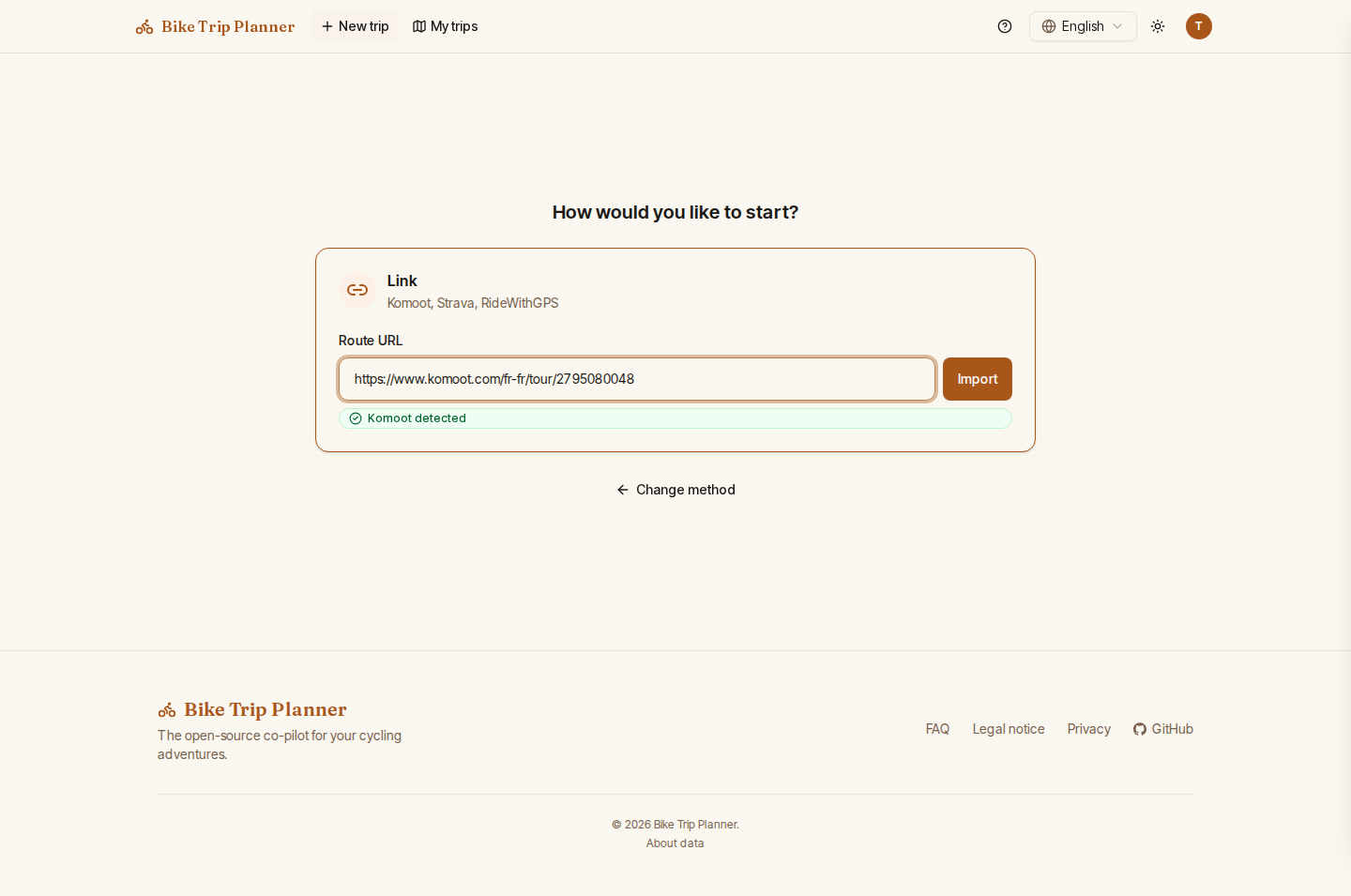
The screen asks How would you like to start? and offers two cards.
To import from a platform:
- Click the Link card.
- Paste the URL into Route URL, for example
https://www.komoot.com/tour/123456789. A chip confirms the source (Komoot detected, Strava detected, RideWithGPS detected); an unsupported address shows Unsupported URL. - Click Import.
To import a file instead, click the GPX file card and drop your .gpx file on it, or
click Browse. You can also drop a GPX file anywhere on the page.
A loader shows while the route is fetched and split into stages. As soon as the stages
exist, the trip opens at its own address (/trips/<id>) and is saved to My trips.
Points of interest, accommodations, weather and alerts keep arriving for a few seconds:
each section fills in on its own, there is nothing to refresh.
3. Read the roadbook
At the top, the summary gives the total distance and elevation, the dates and the Estimated budget. Below it, the roadbook lists one card per day.
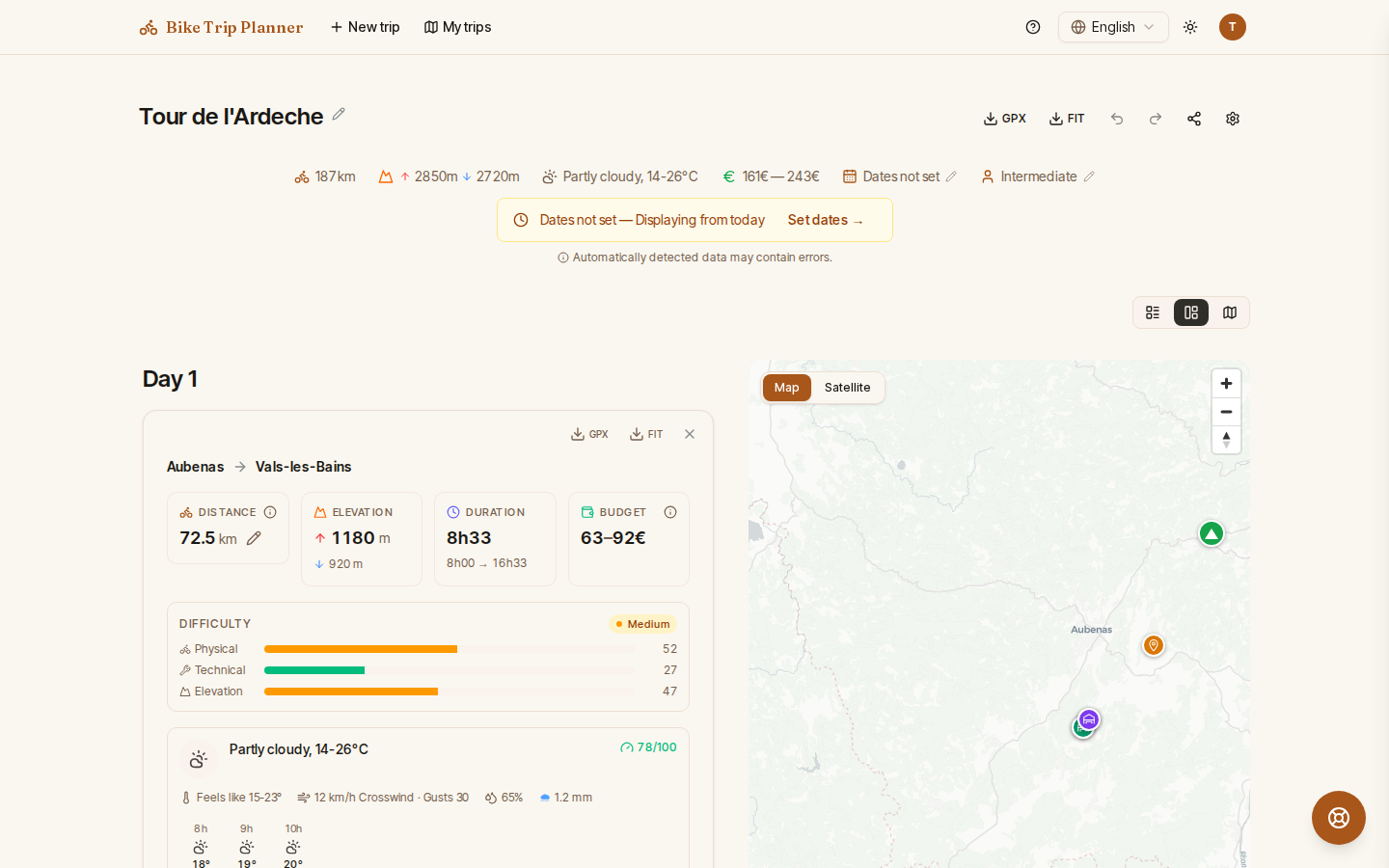
For each stage, the card shows:
- distance, elevation and estimated departure and arrival times, a difficulty rating and the surface breakdown;
- the weather for that day (temperature, feels-like, rain, wind relative to your direction of travel, sunrise and sunset), with an Hourly weather table. Forecasts are available up to 16 days ahead;
- the water points and shops along the way;
- Alerts, from critical to informational: steep climbs, busy roads, rough surfaces, headwind, arrival after dark, no resupply, ferries, fords and more. See the alert engine for the full list. Cultural recommendations close to the route come with an Add to itinerary button that routes the stage through them;
- accommodations found around the stage end point, with an estimated price. Click Select accommodation on the one you plan to book; it feeds the budget. If nothing suits you, click Expand search to ... km or Add accommodation to enter your own;
- local events on that day, and Download GPX / Download FIT buttons for the stage.
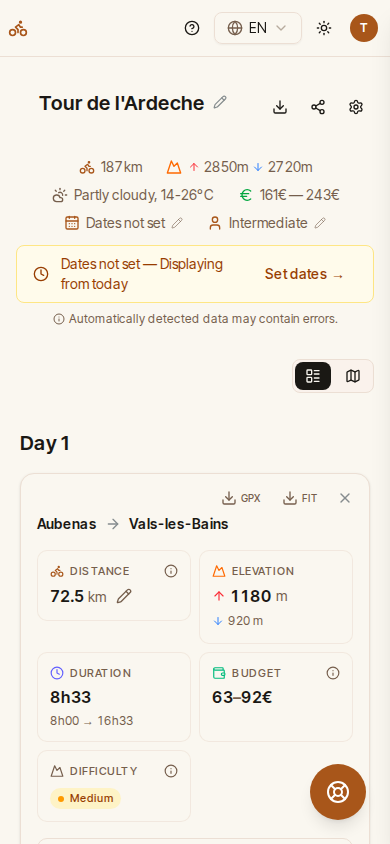
Use the view switch above the roadbook to choose Timeline only, Map only or the Split view. The map carries an elevation profile; click a stage on it to jump to its card. On a phone, the roadbook shows as a single timeline:
4. Adjust the trip
Set your dates
Click Set dates in the banner (or Edit dates in the summary) and pick the start and end dates. The trip is re-split into one stage per day, and the weather and calendar alerts (Sundays, public holidays) follow the real dates. Without dates, the planner shows the trip as if it started today, with as many stages as your maximum daily distance requires.
Tune your rider profile
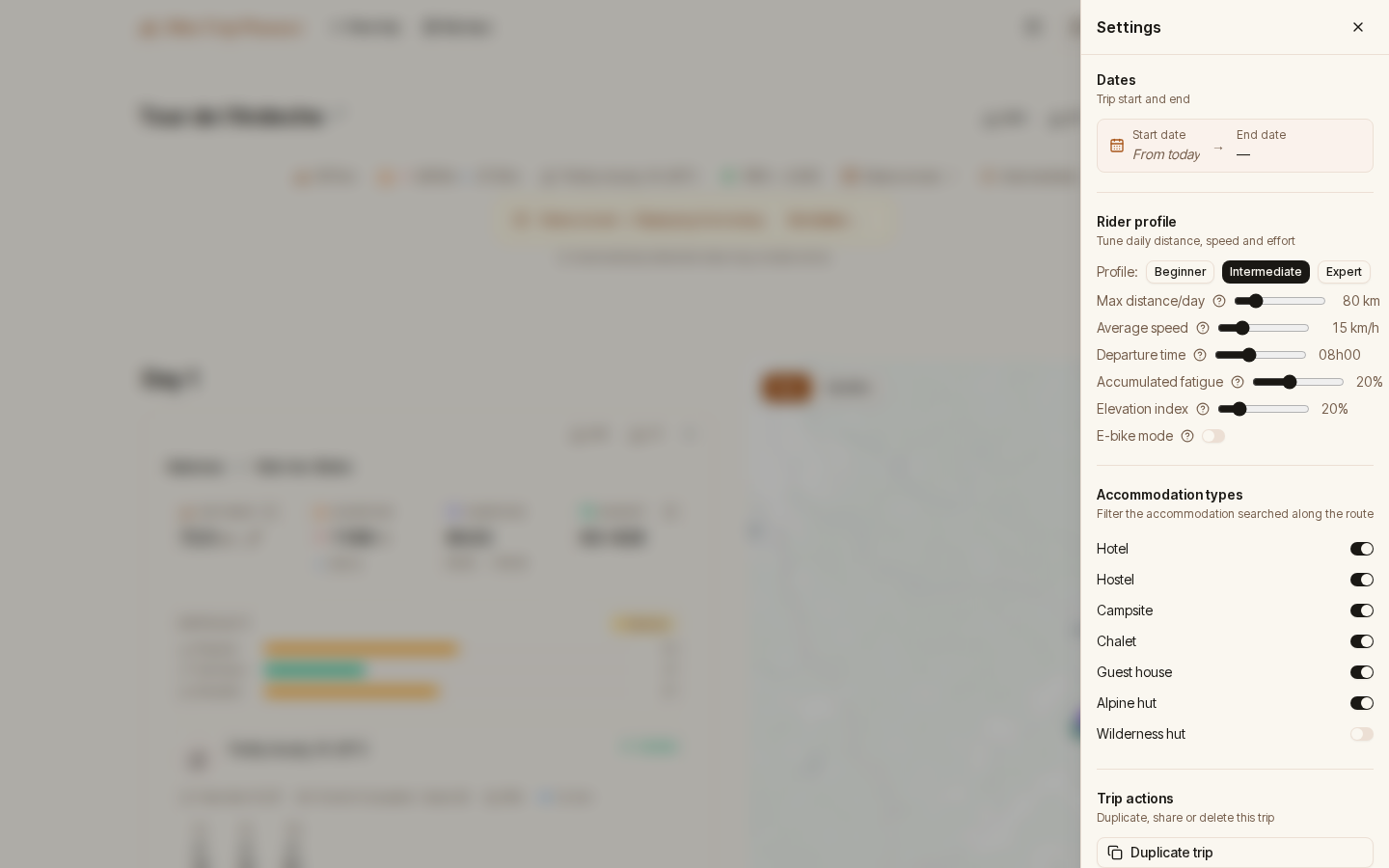
Click the Open settings (gear) button next to the trip title. Under Rider profile:
- pick a preset: Beginner, Intermediate or Expert;
- or set each value: Max distance/day, Average speed, Accumulated fatigue (each day is shorter than the previous one by this percentage), Elevation index (how much climbing shortens a stage), Departure time;
- switch on E-bike mode to get battery-range alerts.
Under Accommodation types, untick the kinds of places you do not want suggested.
Edit individual stages
- Edit distance on a stage changes that day's mileage; the rest of the trip is re-split around it.
- Add stage splits the trip further (at least 5 km per stage); the delete button removes a stage (a trip keeps at least 2).
- Add rest day inserts a day off after a stage.
- Search a stage's departure or arrival to move it to a named place.
Every change can be undone with Undo (Ctrl+Z) and redone with Redo (Ctrl+Y).
5. Export and share
- To load the whole trip on your GPS, use Download full trip GPX or Download full trip FIT next to the trip title. For one day only, use the buttons on that stage's card. Files carry waypoints for the water points, shops and accommodations.
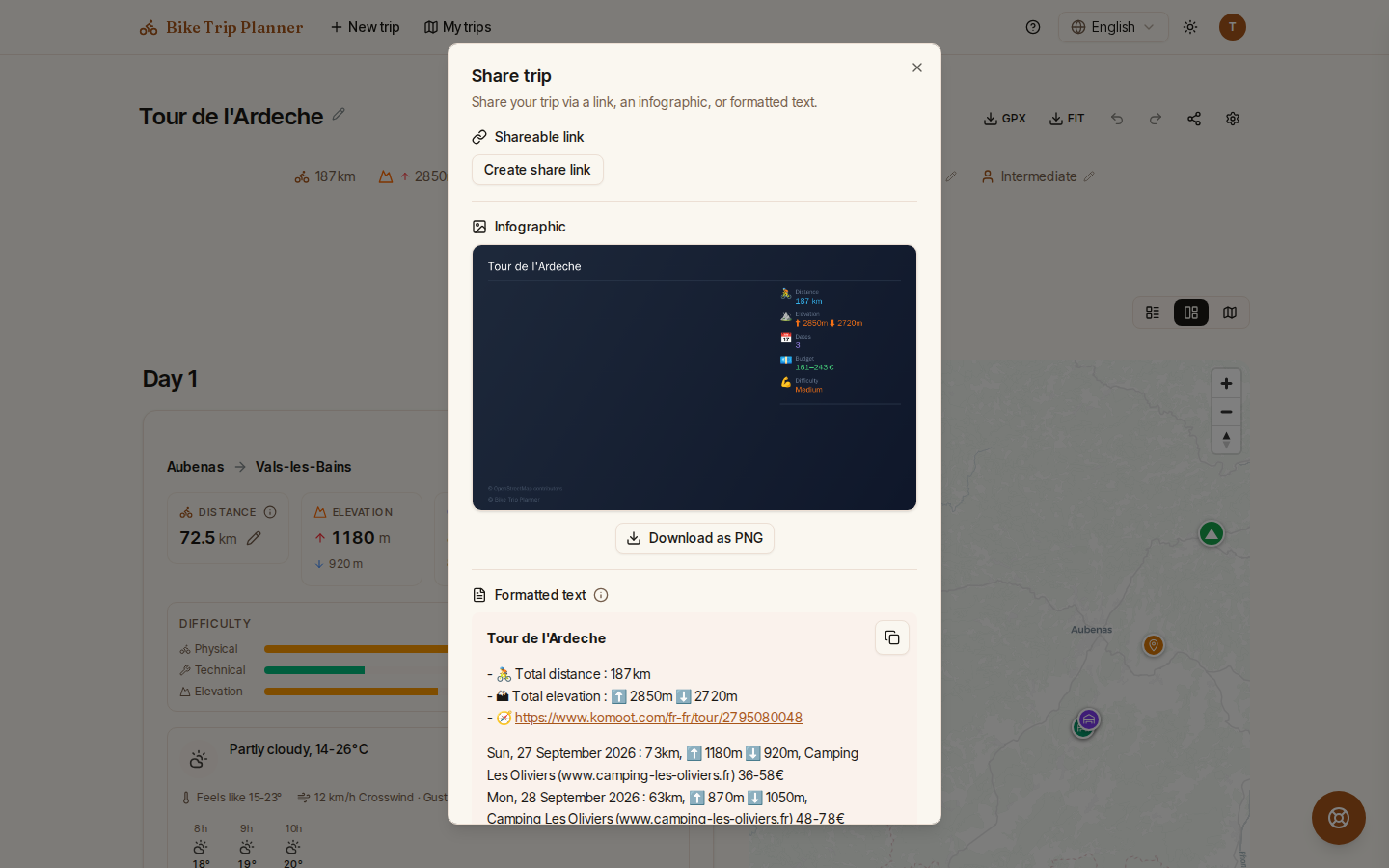
- To show the trip to someone, click Share trip, then Create share link. The link gives read-only access, and Revoke link cuts it at any time. The same dialog lets you Download as PNG an infographic or Copy text of a formatted summary.
What you have done
You imported a route, read its stages, alerts, accommodations and weather, fitted the plan to your dates and pace, and exported it. From here:
- once on the road, the in-ride help button answers "where can I find water / shelter / food / a bike shop...?" around your position;
- the native mobile app keeps upcoming trips available offline;
- an AI assistant can plan and edit trips for you: see Connect an AI agent.
A trip that has started or is in the past becomes read-only; use Duplicate trip in the settings to plan a new variant. The features reference lists everything else the planner does.